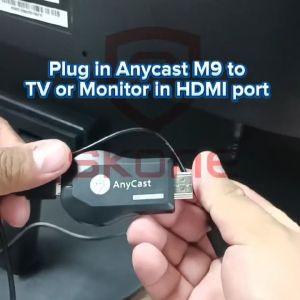
AnyCast Chromecast M12 PLUS / M9 PLUS TV Stick WiFi Dongle Receiver 1080P Display HDMI
AnyCast Chromecast M12 PLUS / M9 PLUS TV Stick WiFi Dongle Receiver 1080P Display HDMI
What is AnyCast Chromecast M12 PLUS & M9 PLUS TV Stick?
Brand Name and Product Type: The AnyCast Chromecast M12 PLUS & M9 PLUS TV Stick is a compact, high-definition streaming device designed to transform your TV into a smart entertainment center. It is a versatile product that supports Android, iOS, Windows, and Mac operating systems, making it a perfect choice for a wide range of users.
Supported Operating Systems: This device is compatible with Android, iOS, Windows, and Mac operating systems. This means that users can easily stream content from their mobile devices, tablets, laptops, or desktop computers to their TVs using this HDMI dongle.
Key Features:
- Supports 1080P Full HD display
- Compatible with Android, iOS, Windows, and Mac operating systems
- No recording capability
- No hard disk capacity
- Remote control not included
- HDMI connector
Setting Up Your AnyCast Chromecast M12 PLUS & M9 PLUS TV Stick
Connecting to HDMI Port: To start streaming content, connect the AnyCast Chromecast M12 PLUS & M9 PLUS TV Stick to your TV's HDMI port. Make sure to choose a free HDMI port on your TV to avoid any connectivity issues.
Connecting to Wi-Fi Network: After connecting the TV stick to your TV, connect it to your Wi-Fi network using the AnyCast app. This app is available for both Android and iOS devices. Follow the on-screen instructions to set up your device.
Configuring Remote Control: The AnyCast Chromecast M12 PLUS & M9 PLUS TV Stick does not include a remote control. However, you can use the AnyCast app on your mobile device or tablet to control the device. The app provides all the necessary controls to stream content, adjust display settings, and troubleshoot common issues.
How to Use AnyCast Chromecast M12 PLUS & M9 PLUS TV Stick
Streaming Content: To stream content, open the AnyCast app on your mobile device or tablet and select the media source you want to stream. You can stream content from popular streaming services such as Netflix, YouTube, Hulu, and more. Once you've selected the media source, simply tap the play button to start streaming.
Adjusting Display Settings: You can adjust the display settings of your TV using the AnyCast app. To access these settings, go to the settings menu within the app and select the display options. Here, you can adjust the brightness, contrast, and other display settings to optimize your viewing experience.
Troubleshooting Common Issues: If you experience any issues while using the AnyCast Chromecast M12 PLUS & M9 PLUS TV Stick, refer to the troubleshooting guide within the app. The guide provides step-by-step instructions to resolve common issues such as connectivity problems, audio issues, and more.
Conclusion
The AnyCast Chromecast M12 PLUS & M9 PLUS TV Stick is a versatile streaming device that supports multiple operating systems and offers a 1080P Full HD display. With its compact design and ease of use, it is a perfect choice for anyone looking to transform their TV into a smart entertainment center.

ELBIKH
You May Also Like

Megapro Plus Volume 86 CD for Piolo/MP100 PIOLO JR with ADDITIONAL Songlist
New Projector Remote Works Seamlessly for PJX100STPJX2440PJX2650PJX2670PJX2680PJX2690PJX5461 No Setups Needed
Umiio Projector 4k ultra hd Projector Mini portable Projector wifi and bluetooth led Projector Portable Video Movie Projector Beamer with HDMI with 1080p and Support Screen for Home Theater/Office
with Original AV Cable Black Mini 1080p Full-HD Ultra Digital for -MKV/RM- HDD USB
Smartifact MXQ Pro TV98 ATV H618 Smart Stick Ultra HD 8K Andriod 14.0 2.4G/5G Dual WiFi Number Key Remote Control And Infrared Learning Key ATV System H1313 Plug In Mmemory Card Quad Core Media Player Set Support DLNA Airplay Miracast TV Receivers
Government Subsidy Bright Version C2D Projector Portable Mini Smart Projector for Room Bedroom Mobile Screen Casting Large Screen
Ottocast Express Play2video Ultra TV Box Wireless CarPlay Android Auto Adapter Built for Youtube Netflix RAM 2GB ROM 16GB New
ACASIS 4K60 HDR HDMI 2.1 Game Capture Card - 4K Pass-Through & Recording HDR/VRR Support USB 3.0 Live Streaming for PC/PS5/Xbox - Silent Cooling 3.5mm Audio Mix RGB Lighting for Twitch/YouTube
Peakdo Millimeter Wave Projector: A Game-Changer for Home Conferences
DITONG X3Plus HD projector Native 1080P support 4K WIFI6 BT5.4 Android projector Auto-focus Auto-keystone Home theater projector
Upgraded TVR3 TV Set-Top Box HD Digital Video Broadcasting TV Receiver 1080P HDMI Upgraded Wireless Dongle