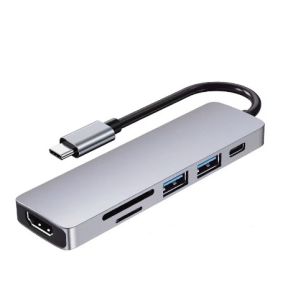
6-in-1 USB Type-C Hub Adapter HDMI USB C-to-USB 3.0 Adapter Card Reader Data Hub HDTV PD
Smart and Versatile Interface ExpansionMeet your multi-interface expansion needs.Charge while playing without power failure, support fast charging 60W, up to 100W, 1.5 hours full macbook.Transfer 1G 5 seconds movie, transmission speed 5Gbps, 500MB/S per second, transmission without pressure.Dual cards can read at the same time, solve the problem of macbook/ultrabook card reading without card slot.Watch 4K HD TVHDMI interface, support 3840 * 2160 / 30Hz resolution, giving you a cinematic experience.easy to carry and travel Small and convenient, easily put in your briefcase. without burdening youSpeed up heat dissipation, stable performance. Aluminum alloy material, the same process as MacBook, delicate touch.6 in 1 design & massive expansion - 2 standard USB ports with 5Gbps transfer speed ensuring quick syncing and file sharing, 1 HDMI port with vivid 4K video output that transfers media in seconds with 3D effect, 2 card slots (one Micro SD,one Micro TF) for superior data-storing versatility, and a USB - C power Delivery charging connector that makes the USB C adapter possible to connect any devices with USB - C ports —All possibilities in one hub.

RH Daily Living
Review

You May Also Like
XUNDD Axe Full Tempered Glass Premium Screen Protector FOR INFINIX HOT 60 PRO 4G
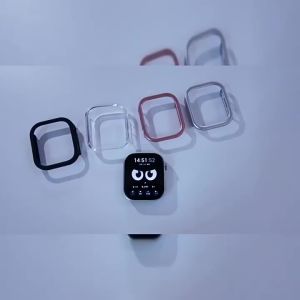
Anti-Scratch Bumper Shell Hollow Protective Cover Hard Case for Xiaomi Redmi Watch 6 Smart Watch Redmi Watch 6 Accessories
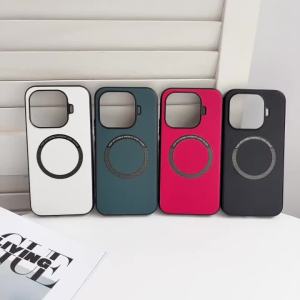
szhaiyu | Luxury Lychee Texture Leather Magnetic Phone Case for Xiaomi 17T Pro 15T Pro 17T 15T for Magsafe Shockproof Protector Cover
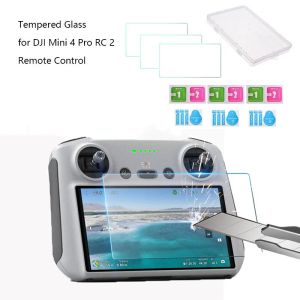
Tempered Glass for DJI Mini 4 Pro RC 2 Remote Control Screen Protector for DJI Mini4 Pro RC2 Anti-scratch Film Glass Accessories
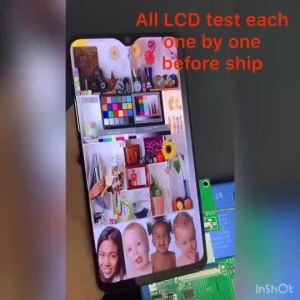
BEXON Hub 6.43" AMOLED Display For OPPO A95 4G CHP2365 LCD Display Touch Screen Digitizer Assembly Replacement For OPPO A95 5G PELM00 Screen
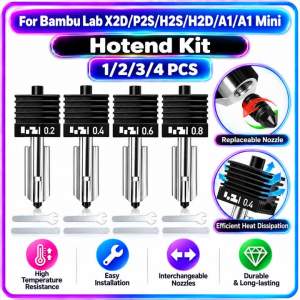
For Bambu Lab X2D P2S H2S A1 A1 Mini A2 Quick‑Swap Removable Hotend Assembly Kit 0.2/0.4/0.6/0.8mm Nozzle 3D Printer Parts
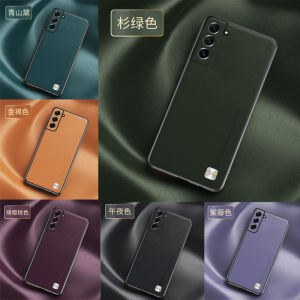
KISSCASE Samung Galaxy S23 Ultra/S23+/S23 Samung 22 Ultra S22+ Case S21 PU Leather Back Cover for Samsung Note 20 Ultra Note 20 A33 A22 A53 A52 A73 A82 A72 A90 A32 A71 A51 A14 A54 Shockpoor Phone Case
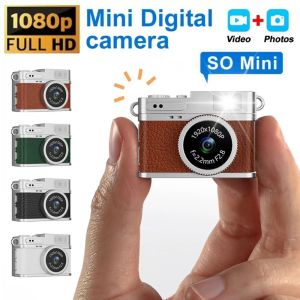
JUNOTERNEY 1080P Mini Keychain Thumb Camera with Video Recording Retro Backpack CCD Digital Camera Fashion LED Flash Light Camcorder Indoor Outdoor
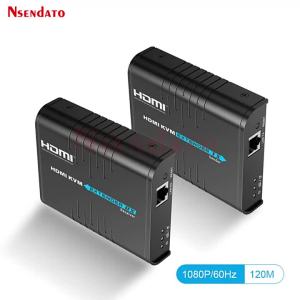
LKV373KVM 120m HDMI USB KVM Extender Over CatE/6/7 RJ45 HDMI Wireless Video Transmitter Receiver for USB 2.0 KVM keyboard Mouse
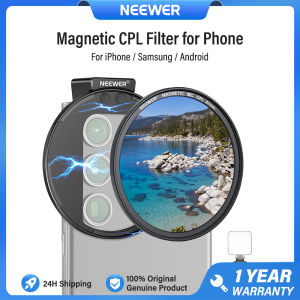
NEEWER 67mm Magnetic CPL Filter for Phone with Phone Lens Clip Filter Holder
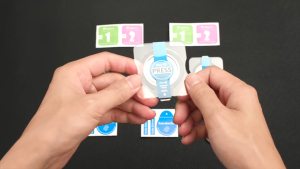
Tempered Glass For Samsung Galaxy Watch 7 6 40mm 44mm Anti-Scratch Screen Protector Film With Automatic Stick Film Tool galaxy Watch Ultra 47mm 6 Classic 43mm 47mm Cover Accessories