2T HDD Pawky Pad Retro Video Game 4K 3D Portable External Game Console For G Cube/Saturn/PS2/Naomi 60,000+ Games For Windows PC
2T HDD Pawky Pad Retro Video Game 4K 3D Portable External Game Console For G Cube/Saturn/PS2/Naomi 60,000+ Games For Windows PC
Understanding the Pawky Pad Retro Video Game Console
The Pawky Pad is a retro video game console designed to bring nostalgic gaming experiences to modern Windows PC users. With its 2TB hard drive, it supports over 60,000 games, making it a versatile gaming device for both retro enthusiasts and casual gamers alike. The Pawky Pad is compatible with various platforms, including G Cube, Saturn, PS2, and Naomi, allowing users to enjoy a wide range of classic games.
Key Features of the Pawky Pad
- 2TB Hard Drive: Store thousands of games and enjoy seamless gameplay without worrying about storage limitations.
- Support for Multiple Platforms: Enjoy games from G Cube, Saturn, PS2, and Naomi platforms on a single device.
- 60,000+ Games Library: Access a vast collection of retro games, including classics like Super Mario Bros., Sonic the Hedgehog, and more.
- Windows PC Compatibility: Connect the Pawky Pad to your Windows PC and enjoy a nostalgic gaming experience.
Supported Platforms: G Cube/Saturn/PS2/Naomi
The Pawky Pad supports four popular gaming platforms, allowing users to enjoy a diverse range of classic games. These platforms include:
- G Cube: A popular handheld gaming device known for its extensive library of RPG and action games.
- Saturn: A home console that was popular in the mid-1990s, featuring games like Sonic 3D Blast and Virtua Fighter 2.
- PS2: One of the best-selling consoles of all time, offering a wide range of games across various genres.
- Naomi: An arcade platform that featured popular games like Virtua Fighter 4 and Guilty Gear X.
60,000+ Games Library
The Pawky Pad boasts a massive library of over 60,000 games, covering a wide range of genres and platforms. Users can easily access their favorite classic games and discover new ones, thanks to the Pawky Pad's intuitive interface and extensive game collection.
Setting Up Your Pawky Pad for Windows PC Gaming
Connecting the Pawky Pad to your Windows PC is simple and straightforward. Follow these steps to set up your Pawky Pad and start enjoying retro gaming on your PC.
Connecting to Your PC
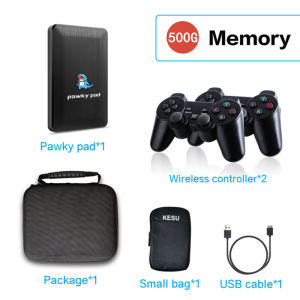
- Connect the Pawky Pad to your Windows PC using the included USB cable.
- Install the Pawky Pad software by following the on-screen instructions.
- Launch the Pawky Pad software and select the platform you want to play games from.
Configuring the Pawky Pad
Once connected, you can customize the Pawky Pad settings to suit your preferences. Here are some configuration options:
- Game Library: Browse through the extensive game library and select the games you want to play.
- Controls: Customize the control settings to match your gaming preferences.
- Resolution: Adjust the resolution settings to optimize performance for 4K 3D gaming.
Optimizing Performance for 4K 3D Gaming
To ensure the best gaming experience, follow these tips to optimize performance:
- Update Drivers: Ensure your PC drivers are up-to-date to avoid compatibility issues.
- Graphics Settings: Adjust graphics settings to balance performance and visual quality.
- Thermal Management: Keep your PC cool by using a good cooling system to prevent overheating.
Exploring the 60,000+ Game Library
The Pawky Pad's extensive game library offers a wide range of classic games across various platforms and genres. Here's how to navigate the game library and find your favorite games.
Categories of Games Available
The Pawky Pad supports over 60,000 games across four popular platforms, including:
- G Cube: RPGs, action games, and more.
- Saturn: Arcade-style games, RPGs, and action games.
- PS2: Action, adventure, sports, and more.
- Naomi: Arcade-style games, fighting games, and more.
Navigating the Game Library
To find your favorite games, follow these steps:
- Launch the Pawky Pad software and select the platform you want to browse.
- Browse through the game categories and select the genre you're interested in.
- Select the game you want to play and launch it.
Tips for Finding Your Favorite Games
- Search Function: Use the search function to quickly find specific games.
- Favorites List: Create a favorites list to easily access your most-played games.
- Platform-Specific Search: Search for games by platform to discover new titles.
Enhancing Your Gaming Experience with the Pawky Pad
The Pawky Pad offers various features and accessories to enhance your gaming experience. Here are some ways to make the most out of your Pawky Pad.
Customizing Controls and Settings
Customize the Pawky Pad controls and settings to match your preferences:
- Control Settings: Adjust control settings to suit your gaming style.
- Display Settings: Optimize display settings for the best visual experience.
- Audio Settings: Adjust audio settings to enhance sound quality.
Multiplayer Options
Enjoy multiplayer gaming with friends using the Pawky Pad's built-in features:
- Local Multiplayer: Play games with friends locally using split-screen mode.
- Online Multiplayer: Connect with other players online and enjoy multiplayer games together.
Additional Features and Accessories
The Pawky Pad supports various accessories to enhance your gaming experience:
- Headsets: Connect a headset for immersive audio experiences.
- Gamepads: Use a gamepad for a more authentic gaming experience.
- Streaming: Stream your gameplay to popular platforms like Twitch and YouTube.
In conclusion, the Pawky Pad is a versatile retro video game console that offers a vast library of classic games and a range of features to enhance your gaming experience. With its support for multiple platforms and compatibility with Windows PC, the Pawky Pad is the perfect device for retro gaming enthusiasts and casual gamers alike.

MIYOO Game Store
Review
You May Also Like
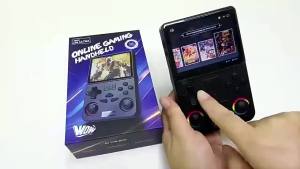
Global Battle ConnectableGame Console J36Ultra Open Source Handheld Arcade Fighting Game

Private Model Smart Bluetooth Glasses Black Technology for Calling and Listening to Music Outdoor UV Protection Direct Supply
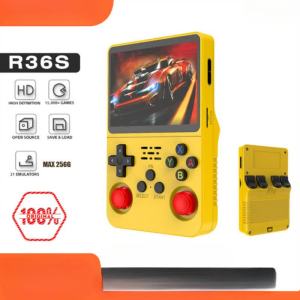
Retro R36S 256G Handheld Game Console Linux System 3.5Inch IPS Screen Portable Pocket Video Player 2 Joystick 128G 64G Kid Gift
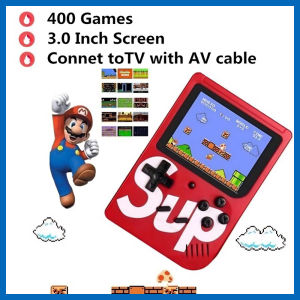
Mini game console Gameboy Retro mini pocket game Game console Handheld game console
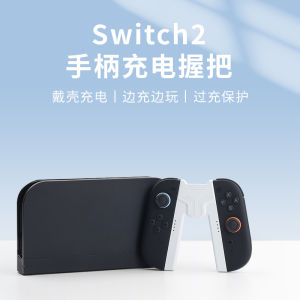
Portable Nintendo Switch 2 Handle Charging Base Joycon Charger Accessory NS2 Charging Station Game Console Accessories
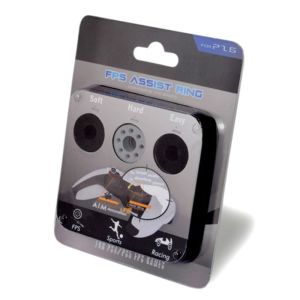
8Pc/set Handle Sponge Ring For Precision Rings Aim Assist Motion Controller For Switch for One Assistant Ring
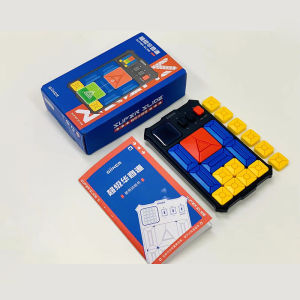
⭐⭐⭐Giiker Puzzle Super Slide Huarong Road Smart Sensor Game 500+ Question Bank Teaching Challenge Fun Toy Gift For Children Kids
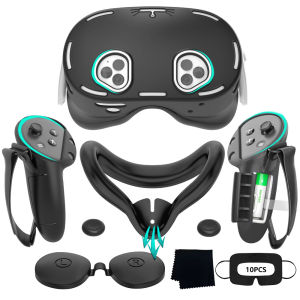
High Quality VR Accessories 8 In 1 Silicone Protective Cover Kit For Meta Quest 3s With Wiping Cloth&Disposable Masks Idea Gift
Nintendo Switch 2
Nintendo Switch2 Controller Silicon Protective Cover Cartoon Cute Design Yooka-Laylee Theme Joystick Cap Gaming Accessory
Handle Type Handheld Games Consoles Nostalgic R Puzzle Block Elimination Game Mini Student Toys Kids Gift Comes With Battery