Tuya Smart Switch & Fingerbot Robot Arm: A Complete Guide
Tuya Smart Switch & Fingerbot Robot Arm: A Complete Guide
Introduction to Mechanical Home Automation
In today's world, technology has revolutionized our daily lives, making it easier and more convenient than ever before. One such area that has seen significant advancements is home automation, specifically mechanical home automation. This innovative technology allows users to control their smart home devices with ease, using remote controls, voice assistants, and even mechanical arms like the Fingerbot Robot Arm.
In this article, we will explore the Tuya Smart Switch and the Fingerbot Robot Arm, two cutting-edge products that can help you automate your home and make your life easier. We will discuss their features, setup, installation, and troubleshooting, so you can make the most out of these devices.
Understanding Bluetooth Compatible Remote Control
Bluetooth compatible remote control is a crucial feature of the Tuya Smart Switch and Fingerbot Robot Arm. This technology enables users to control their devices using Bluetooth, which offers several advantages over traditional wired remote controls. Bluetooth remote controls are wireless, compact, and easy to use, making them perfect for controlling smart home devices.
The Tuya Smart Switch and Fingerbot Robot Arm both support BLE 4.2 communication protocol, which provides reliable and secure connections between the devices and the user's smartphone or tablet. With Bluetooth compatible remote control, you can easily control your smart home devices from anywhere in your house, without the need for complex wiring or setup.
Exploring Alexa & Google Assistant Integration
Another essential feature of the Tuya Smart Switch and Fingerbot Robot Arm is their integration with voice assistants like Amazon Alexa and Google Home Assistant. These voice assistants offer a hands-free way to control your smart home devices, allowing you to manage your home with just your voice.
To use Alexa or Google Assistant with your Tuya Smart Switch or Fingerbot Robot Arm, you'll need to purchase a Fingerbot Bridge. This device connects your mechanical arm to the internet, enabling you to control it remotely using voice commands. Once you've set up the bridge, you can use the App to configure voice commands and activate the voice-control function.
Key Features of the Tuya Smart Switch & Fingerbot Robot Arm
The Tuya Smart Switch and Fingerbot Robot Arm come with several key features that make them stand out in the world of mechanical home automation. Here are some of the most important ones:
App Control & Voice Control Capabilities
Both the Tuya Smart Switch and Fingerbot Robot Arm offer app control and voice control capabilities, allowing users to manage their smart home devices from anywhere using their smartphones or tablets. With the App, you can control your devices directly via Bluetooth, set schedulers to automatically activate them at certain times, and configure voice commands to control them using Alexa or Google Assistant.
Scheduler & Remote Control Functions
The Tuya Smart Switch and Fingerbot Robot Arm also come with scheduler and remote control functions. With the App, you can set schedulers to automatically activate your devices at specific times, ensuring they work seamlessly with your daily routine. Additionally, with a Fingerbot Bridge, you can control your devices remotely through the internet, giving you complete control over your smart home from anywhere in the world.
Setup & Installation Guide
Setting up and installing the Tuya Smart Switch and Fingerbot Robot Arm is straightforward and easy. Follow these steps to get started:
Connecting Fingerbot to Smart Home Devices
To connect your Fingerbot Robot Arm to your smart home devices, you'll first need to download the App and create an account. Once you've done that, follow the on-screen instructions to connect your Fingerbot to your smartphone or tablet via Bluetooth. Next, you can connect your Fingerbot to your smart home devices using the App.
Configuring Voice Commands & Schedulers
Once you've connected your Fingerbot to your smart home devices, you can configure voice commands and schedulers using the App. To set up voice commands, you'll need to purchase a Fingerbot Bridge and connect it to your Fingerbot via the App. Then, you can set up voice commands for Alexa or Google Assistant to control your devices hands-free.
To set up schedulers, simply open the App and navigate to the scheduler section. From there, you can set up schedules for your devices to automatically activate at specific times, ensuring they work seamlessly with your daily routine.
Troubleshooting Common Issues
Like any technology, the Tuya Smart Switch and Fingerbot Robot Arm may occasionally encounter issues. Here are some common problems and their solutions:
Solving Connectivity Problems
If you're having trouble connecting your Fingerbot Robot Arm to your smartphone or tablet via Bluetooth, try restarting both devices and making sure they are within range of each other. If the problem persists, check the Bluetooth settings on your smartphone or tablet to ensure they are enabled and functioning correctly.
Addressing Battery & Charging Concerns
If you're experiencing battery issues with your Fingerbot Robot Arm, try charging it using the included USB Type-C charging cable. If the battery still doesn't hold a charge, contact Tuya support for assistance.
In conclusion, the Tuya Smart Switch and Fingerbot Robot Arm are powerful tools that can help you automate your home and make your life easier. With their app control, voice control, scheduler, and remote control functions, these devices offer a wide range of features that cater to different needs and preferences. By following the setup and installation guide and troubleshooting common issues, you can ensure that your smart home devices work seamlessly and efficiently, enhancing your daily life.

King King Shop
You May Also Like

Z2 Instant AI Voice Translator Portable 3.1 inch Touch Screen Real Time Translator with Recording Photo for Travel Learn Meeting
2025 New Smart Watch Men Women Full Touch Screen Sport Fitness Watch IP67 Waterproof Bluetooth For Android IOS Smartwatch Gift
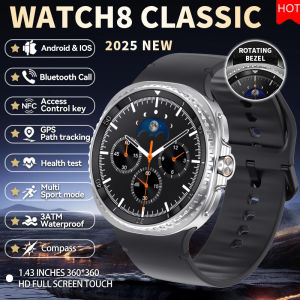
2025 New Watch8 Classic Rotating Bezel SmartWatch 1.43" AMOLED Screen NFC Compass GPS Path 3ATM Waterproof Smartbracelet For iOS
Haylou Solar Pro LS18 Fitness Tracker Bluetooth 5.3 SOS + AI Assistant Military-Grade Design
W5 Original Children Positioning Watch 4G SIM Card Smart Watch 200W Pixel Dual Camera wifi Video Call Kids GPS Tracker Recording Android 9.0 Smartwatch
Smartwatch HW10: A Comprehensive Guide for Android & iOS
Mini Tracking Device For Google Find My Device Smart Tag Pet Key Wallet GPS Lost Tracker Smart Bluetooth Tracker for Android
2024 New AMOLED Smart Watch Men Outdoor Military IP68 Waterproof Fitness Tracker Compass 1.43 inch Talking Smartwatch For Xiaomi
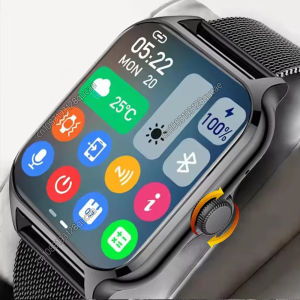
New Outdoor Military GPS Smart Watch Men Waterproof Multiple Sport Mode Fitness HD Bluetooth Calls Smartwatch Men Women Bracelet
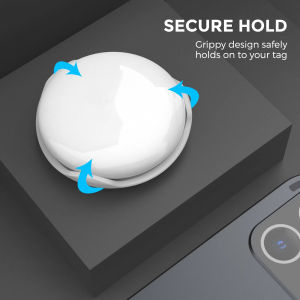
For AirTag ABS Hard Shell Protective Shell Clip Fixed Anti-loss Tracker Plastic Protective Shell
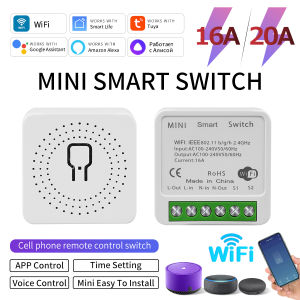
Tuya WiFi Smart Switch 16A 20A RF 433Mhz Relay Breaker Module 2-Way Control Smart Life App Remote Works with Google Home Alexa