Wireless Bluetooth Media Button Remote Controller: A Comprehensive Guide
Wireless Bluetooth Media Button Remote Controller: A Comprehensive Guide
What is a Wireless Bluetooth Media Button Remote Controller?
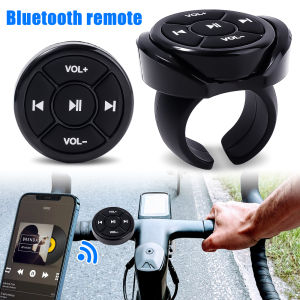
A wireless Bluetooth media button remote controller is a small device designed to enable users to control their music playback on their smartphones, tablets, or other compatible devices while driving. This compact remote controller allows users to access essential functions like play/pause, skip forward/backward, and volume control, without having to take their hands off the steering wheel.
Key Features & Benefits
- Wireless connectivity: No need for cables or wires, making it easy to install and use.
- Bluetooth technology: Connects seamlessly to your device via Bluetooth, ensuring a stable connection.
- Universal compatibility: Works with various smartphones, tablets, and MP3 players, including those running iOS and Android operating systems.
- Easy installation: No complicated setup required; simply attach the remote controller to your steering wheel and pair it with your device.
- Enhanced safety: Keeps your hands on the wheel, reducing distractions while driving.
How It Works
The wireless Bluetooth media button remote controller works by establishing a secure Bluetooth connection with your compatible device. Once paired, the remote controller sends signals to your device, allowing you to control playback functions like play/pause, skip forward/backward, and volume control. This ensures a seamless music playback experience while driving.
Car & Motorcycle Steering Wheel Integration
Installing a wireless Bluetooth media button remote controller on your car or motorcycle steering wheel is a straightforward process that can be completed in just a few minutes.
Installation Process
- Attach the remote controller to your steering wheel using the adhesive backing provided.
- Press and hold the pairing button on the remote controller until the LED indicator lights up, indicating that it is ready to pair.
- On your smartphone, tablet, or MP3 player, go to the Bluetooth settings and select the remote controller from the list of available devices.
- Once paired, the LED indicator on the remote controller will turn off, and you can begin controlling your music playback.
Compatibility with Different Vehicle Models
The wireless Bluetooth media button remote controller is designed to work with a wide range of vehicle models, including cars and motorcycles. It is compatible with most steering wheel sizes and shapes, making it easy to install on various vehicles.
iOS & Android Tablet Compatibility
The wireless Bluetooth media button remote controller is compatible with both iOS and Android tablets, allowing users to enjoy a seamless music playback experience on their preferred device.
Supported Devices
- iOS devices: iPhone, iPad, iPod Touch
- Android devices: Samsung Galaxy, Google Pixel, LG G series, and other popular Android tablets
Seamless Music Playback Experience
With the wireless Bluetooth media button remote controller, users can easily control their music playback on their iOS or Android tablet while driving. This ensures that they can enjoy their favorite tunes without having to take their hands off the steering wheel.
Bluetooth Media Button Controller: Best Practices
To get the most out of your wireless Bluetooth media button remote controller, follow these best practices:
Pairing & Connecting
- Ensure that both your device and the remote controller are within Bluetooth range (typically up to 30 feet).
- Turn off any Bluetooth devices that may interfere with the connection.
- Follow the installation process outlined above to pair the remote controller with your device.
Troubleshooting Common Issues
- If the remote controller does not connect to your device, try resetting both the remote controller and your device by turning them off and on again.
- If the remote controller does not respond to button presses, check that it is properly paired with your device and that the battery is charged.
- If you experience audio issues, try adjusting the volume settings on your device or restarting the remote controller.

CCWOLF
Review

You May Also Like
TMD 3 Camera Lens Car S1 HD 1080P 24h Parking Monitor DVR Wifi Dash Cam night Video Recorder Dashcam for car front and back
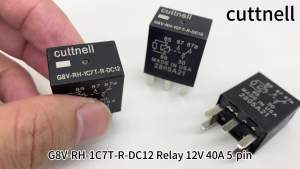
3-Pack G8V-RH-1C7T-R-DC12 Relays 12VDC 35A 5-Pin Multi-Functional OEM Relay Compatible for Some Chevrolet Cadillac Jeep Dodge and Seadoo Vehicles
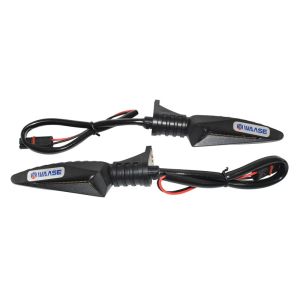
Motorbike Front Turn Signals Blinker Indicator LED Light Lamp For BMW F900R F900XR F750GS F850GS 2018 2019 2020 2021 2022 2023

Multi-Purpose Derusting Oil: A Comprehensive Guide
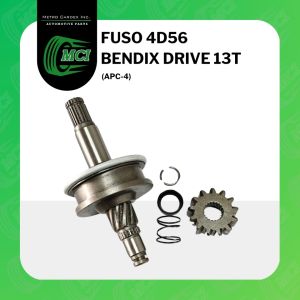
BENDIX DRIVE Fuso 4D56 APC-4 13 teeth vindex drive starter motor engine clutch reduction type 4D55
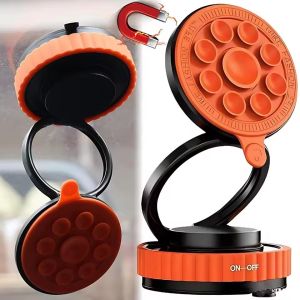
Auto Vacuum Suction Cup Magnetic Car Phone Holder Mount Stand 360-Rotation Foldable Dashboard Windshield Support for Smartphone

Senior mens raincoat Motorcycle Raincoat Waterproof Jacket motorcycle Raincoat Breathable reflective hooded raincoat
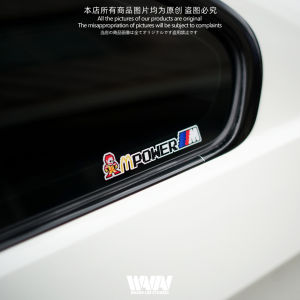
Bayshore Reflective Decals Waterproof Creative Decoration Stickers for BMW M POWER Triangle Window Customizable Car Stickers
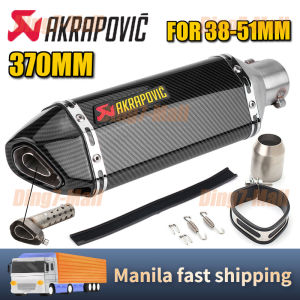
Universal 38mm-51mm AKRAPOVIC Motorcycle Exhaust Pipe Carbon Fiber Type Muffler Canister Pipe Tailpipe 370mm Length Include Silencer for Honda

1Pair Original tdd LED Laser Mini Driving Light Full Set White Light And Yellow Cover
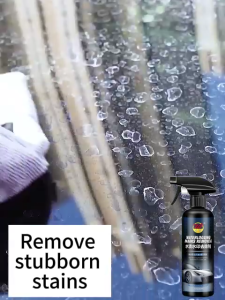
Acid rain remover for car 500ML (Watermarks remover) glass care for car windshield water marks for car body watermarks for chrome for glass for window water marks for windshield acid rain remover for glass water marks remover for car paint and glass