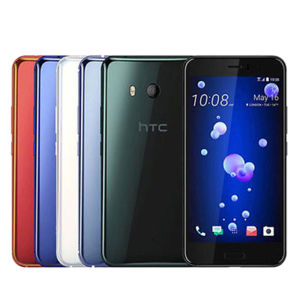
HTC U11: A Comprehensive Guide to 5.5 Inch Android Smartphone
HTC U11: A Comprehensive Guide to 5.5 Inch Android Smartphone
The HTC U11 is a sleek and powerful 5.5 Inch Android Smartphone that offers top-of-the-line features and performance. In this guide, we will explore its key features, specifications, tips for optimal use, and troubleshooting common issues.
Key Features & Specifications
Display & Design
The HTC U11 boasts a 5.5-inch LCD display with a resolution of 2560x1440 pixels, providing vivid visuals and sharp details. The phone's dimensions are 153.9 x 75.9 x 7.9 mm, making it comfortable to hold and use. Its design is characterized by a bar shape, giving it a classic yet modern look.
Performance & Storage
Under the hood, the HTC U11 is powered by an octa-core Qualcomm CPU, delivering fast performance and smooth multitasking. With 4GB of RAM and 64GB of internal storage, you'll have ample space for apps, photos, and videos. Additionally, it supports up to two SIM cards, making it ideal for users who require multiple lines.
Camera & Connectivity
The HTC U11 features a 12MP rear camera and a 16MP front-facing camera, allowing you to capture stunning photos and selfies. It also supports fast charging with Quick Charge 3.0 technology, ensuring your battery lasts longer throughout the day. Other connectivity options include NFC, Wi-Fi, Bluetooth, and a 3.5mm headphone port.
How to Get the Most Out of Your HTC U11
Customizing Your Experience
To personalize your HTC U11 experience, take advantage of the fingerprint recognition feature for secure access. Customize your home screen layout, widgets, and app shortcuts to suit your preferences. Additionally, the phone supports multiple languages, including English, German, French, Spanish, Italian, Portuguese, Polish, Norwegian, and Russian.
Tips for Optimal Battery Life
To maximize battery life, enable battery-saving mode, reduce screen brightness, and limit background app activity. Charge your phone using the included Type-C charging cable and take advantage of Quick Charge 3.0 technology for faster charging times.
Exploring Additional Features
The HTC U11 offers several additional features, such as a dedicated Google Assistant button, water-resistant design, and support for wireless headphones via Bluetooth. Explore these features to enhance your overall experience.
Troubleshooting Common Issues
Dealing with Software Glitches
If you encounter software glitches, try restarting your phone or performing a factory reset. Ensure that your device is running the latest Android version and HTC software updates.
Addressing Hardware Problems
If you experience hardware issues, such as display problems or charging port malfunctions, contact HTC customer support for assistance. They can provide guidance on troubleshooting steps or arrange for repairs if necessary.
Seeking Support & Resources
For further assistance, visit the HTC website for user manuals, FAQs, and troubleshooting guides. You can also reach out to HTC customer support via phone, email, or live chat for personalized help.

XiaXiaYouMI Mobile Phone Store
Review

You May Also Like
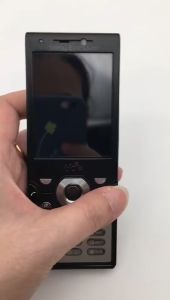
Sony Ericsson W995i Mobile Phone: A High Performance Slider Music Phone
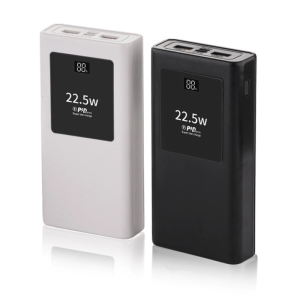
20000mAh PowerBanks Casing Kit with 22.5W Fast Charging USB C Output Port & Input Port LED Indicator for Phone
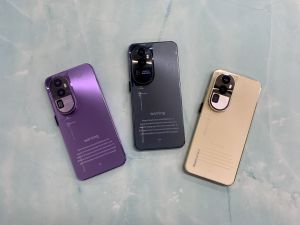
Reno10 Pro 4G/5G Smartphone: A High Performance Device with 7.3inch Ultra-Clear Screen
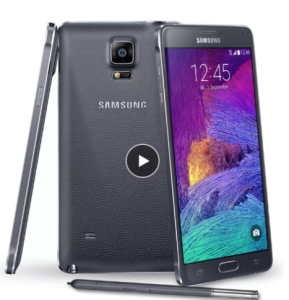
Unlocked Samsung Galaxy Note 4 N910F 5.7 32GB Quad Core 16MP Mobile Phones

Interphone Mini Civilian Handset Wireless Restaurant Small Small Machine Intercom Machine Restaurant Hospital Machine
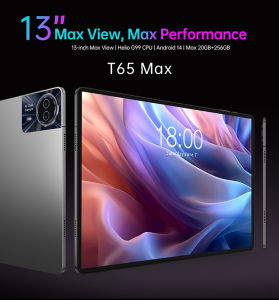
TECLAST T65 Max 13\" Android 14 Tablet – Helio G99 20GB RAM + 256GB ROM | 1920x1200 FHD IPS | 4G LTE Widevine L1 TÜV Certified | 10000mAh Battery 18W Fast Charge 1-Year Warranty
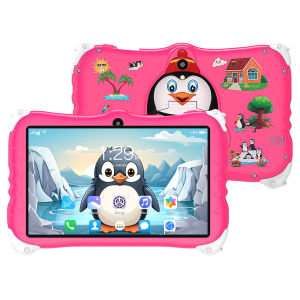
Good Quality Penguin Childrens learning Tablet 7.0-inch Ultra Clear Screen Memory 8GB RAM +128GB ROM Support 2.4WIFI
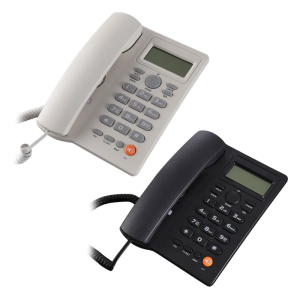
Caller Display Telephone Hands Free Calling Corded Landline Phone Landline Telephone for Home Office Hotel KX-T2025

Nokia 105: A Simple Button Phone for Seniors
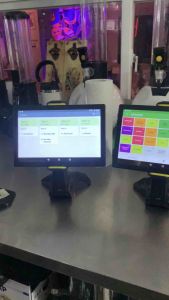
POS Kitchen Display for Loyverse POS 10\\\" (Tablet only w/stand)\\n\\nLoyverse POS Tablet is a powerful and versatile point-of-sale system designed to streamline operations in various retail and restaurant environments. This comprehensive guide will provide you with essential information about the Loyverse POS Tablet, its key features, benefits, and how to set up and use the POS Kitchen Display system effectively.\\n\\n What is Loyverse POS Tablet?\\n\\nLoyverse POS Tablet is a tablet-based point-of-sale system that combines a sleek design with advanced features to help businesses manage their sales, inventory, and customer data efficiently. With a 10-inch screen and a sturdy stand, this tablet is perfect for countertop or tabletop use, providing a convenient and intuitive interface for employees and customers alike.\\n\\n Key Features\\n\\nThe Loyverse POS Tablet offers a range of features that make it a valuable asset for any business:\\n\\n* **User-friendly interface**: The tablet's intuitive design allows even non-technical staff to operate the system with ease.\\n* **Mobile payments**: Accept credit cards, debit cards, and mobile payments such as Apple Pay and Google Pay.\\n* **Inventory management**: Track stock levels, set reorder points, and generate reports to help optimize inventory levels.\\n* **Customer management**: Store customer data, manage loyalty programs, and send targeted promotions to increase sales.\\n* **Reporting and analytics**: Generate real-time reports and insights to make informed business decisions.\\n\\n Benefits of Using Loyverse POS Tablet\\n\\nLoyverse POS Tablet offers several benefits that can help businesses improve their operations and increase profitability:\\n\\n* **Increased efficiency**: Streamline sales processes, reduce errors, and save time with automated features.\\n* **Improved customer experience**: Provide a seamless checkout experience with fast and secure mobile payments.\\n* **Enhanced inventory management**: Reduce stockouts and overstock situations by monitoring inventory levels in real-time.\\n* **Better decision-making**: Access valuable data and insights to make informed business decisions.\\n\\n Setting Up Your Loyverse POS Tablet\\n\\nTo get started with Loyverse POS Tablet, follow these steps:\\n\\n Installing Loyverse POS App\\n\\n1. Download the Loyverse POS app from the App Store or Google Play Store.\\n2. Follow the on-screen instructions to set up your account and configure the system settings.\\n3. Customize the app according to your business needs.\\n\\n Connecting Your Tablet to Loyverse POS\\n\\n1. Connect your tablet to the internet using Wi-Fi or cellular data.\\n2. Sign in to your Loyverse POS account.\\n3. Configure the system settings, including payment gateways, inventory management, and customer management.\\n\\n Using the POS Kitchen Display\\n\\nThe POS Kitchen Display system is an essential component of Loyverse POS Tablet, providing real-time order updates and streamlining kitchen operations.\\n\\n Setting Up the Kitchen Display System\\n\\n1. Connect the Kitchen Display to your network using Wi-Fi or Ethernet.\\n2. Install the Loyverse POS app on the Kitchen Display.\\n3. Configure the Kitchen Display settings, including order display preferences and layout.\\n\\n Customizing the Kitchen Display Layout\\n\\nCustomize the Kitchen Display layout to suit your kitchen's workflow and preferences. This may include adjusting font size, color scheme, and order display order.\\n\\n Best Practices for Using Loyverse POS Tablet & Kitchen Display\\n\\nTo maximize the benefits of Loyverse POS Tablet and Kitchen Display, follow these best practices:\\n\\n Optimizing Your Workflow\\n\\n* Train staff on how to use the system effectively.\\n* Customize the app and Kitchen Display settings to fit your business needs.\\n* Regularly update the system to ensure optimal performance.\\n\\n Maximizing Efficiency with Loyverse POS Tablet & Kitchen Display\\n\\n* Monitor inventory levels and adjust reorder points to avoid stockouts and overstock situations.\\n* Utilize reporting and analytics features to make informed business decisions.\\n* Provide fast and secure mobile payments to enhance the customer experience.\\n\\nIn conclusion, Loyverse POS Tablet and Kitchen Display offer a powerful combination of features and benefits that can help businesses streamline their operations and increase profitability. By following these best practices and customizing the system to fit your business needs, you can optimize your workflow and maximize efficiency.\n}
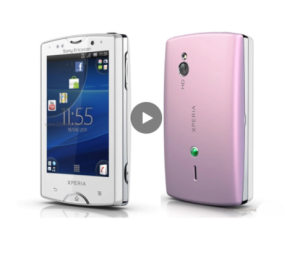
Sony Ericsson Xperia Mini ST15: A Comprehensive Guide