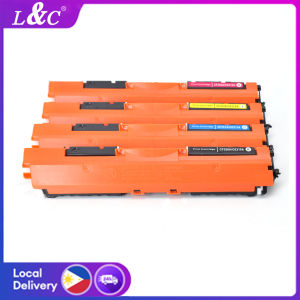
L&C CF350A/CF351A/CF352A/CF353A/130A Toner Cartridge for HP LaserJet Pro Printers
L&C CF350A/CF351A/CF352A/CF353A/130A Toner Cartridge for HP LaserJet Pro Printers
Understanding L&C Toner Cartridges
The L&C CF350A/CF351A/CF352A/CF353A/130A toner cartridges are designed specifically for HP LaserJet Pro printers, including models like the M176, M176fw, M177, and M177n. These toner cartridges come in four vibrant colors - black, cyan, magenta, and yellow - to provide excellent print quality and reliability.
L&C CF350A & CF351A Toner Cartridge Compatibility
L&C CF350A and CF351A toner cartridges are compatible with HP LaserJet Pro M176 and M176fw printers. They offer high-quality black and color prints, ensuring consistent results every time.
L&C CF352A & CF353A Toner Cartridge Features
L&C CF352A and CF353A toner cartridges are designed for HP LaserJet Pro M177 and M177n printers. These toner cartridges boast excellent color accuracy and sharpness, making them ideal for professional printing tasks.
Installing L&C Toner Cartridges
Installing L&C toner cartridges is a straightforward process. Follow these steps to ensure proper installation:
Installing L&C CF350A & CF351A Toner Cartridges
- Turn off the printer and unplug it from the power source.
- Open the toner cartridge access door and remove the old toner cartridges.
- Carefully remove the new L&C CF350A or CF351A toner cartridge from its packaging.
- Align the toner cartridge with the guides inside the printer and gently insert it until it clicks into place.
- Close the toner cartridge access door and reconnect the printer to the power source.
Installing L&C CF352A & CF353A Toner Cartridges
The installation process for L&C CF352A and CF353A toner cartridges is similar to that of the CF350A and CF351A toner cartridges. Simply follow the steps outlined above, replacing the old toner cartridges with the new L&C CF352A or CF353A toner cartridges.
Troubleshooting Common Issues
If you encounter issues during the installation process or experience print quality problems, refer to the following troubleshooting tips:
Resolving L&C Toner Cartridge Installation Problems
- Ensure that the printer is turned off and unplugged before installing new toner cartridges.
- Double-check that the toner cartridge is compatible with your printer model.
- Follow the installation instructions carefully, ensuring that the toner cartridge is properly aligned and inserted.
Fixing Print Quality Issues with L&C Toner Cartridges
- Clean the printer's drum unit and toner cartridge contacts using a soft, lint-free cloth.
- Verify that the toner cartridge is properly installed and aligned within the printer.
- Check the printer's settings to ensure that the correct paper type and print quality are selected.
Enhancing Your Printing Experience
To get the most out of your L&C toner cartridges, consider the following tips:
Tips for Optimizing L&C Toner Cartridge Performance
- Regularly clean the printer's drum unit and toner cartridge contacts to maintain optimal print quality.
- Store toner cartridges in a cool, dry place away from direct sunlight and moisture.
- Follow the manufacturer's recommendations for proper toner cartridge handling and installation.
Extending the Life of Your L&C Toner Cartridges
- Print only when necessary to conserve toner.
- Use draft mode for non-critical printing tasks to reduce toner usage.
- Keep the printer clean and well-maintained to prevent unnecessary wear and tear on the toner cartridges.

L&C Offical Store
Review
You May Also Like
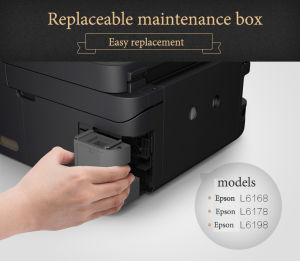
For Epson L6170 L6290 L6190 L6191 L617 L6168 L6178 L6198 M1140 ET-2700 ET-2760 Epson Maintenance Box T04D1
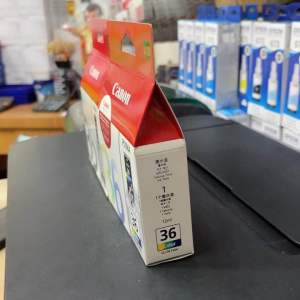
Brandnew Genuine ink cartridge PG35 black & CL 36: A Comprehensive Guide
![[COD] SHGMYD 20PCS A4 Sheets Heat Toner Transfer Paper For DIY PCB Electronic Prototype Mak](https://img.lazcdn.com/g/p/641add4f00b4780ca660e5a93885130e.jpg_300x300q80.jpg)
[COD] SHGMYD 20PCS A4 Sheets Heat Toner Transfer Paper For DIY PCB Electronic Prototype Mak
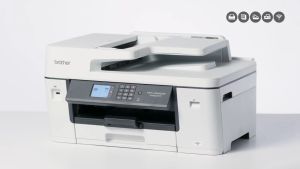
Brother MFC-J3540DW Inkjet Printer
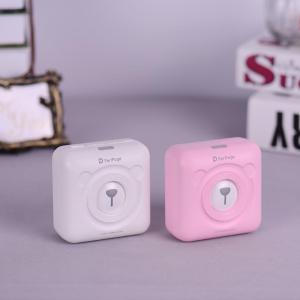
PeriPage A6 Mini Pocket Wireless BT Thermal Printer: Features & Benefits

【PH Ready Stock】L&C Refill for HP GT51 GT52 Ink Set Dye Ink For Inkjet Printer 410 319 500 GT5810 GT5810 GT5820 70ML
Epson Waste Ink Pad For Epson L110 L111 L120 L130 L132 L210 L211 L220 L222 L300 L301 L303 L310 L312 L313 L350 L351 L353 L355 L358 L361 L362 L363 L364 L365 L366 L375 L380 L382 L385 L386 L395L396 L400 L405 L455
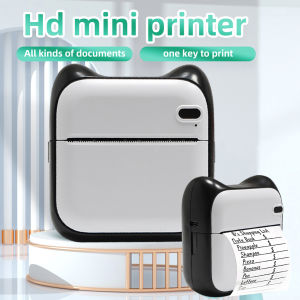
Mini Photo Pocket Printer: A Comprehensive Guide
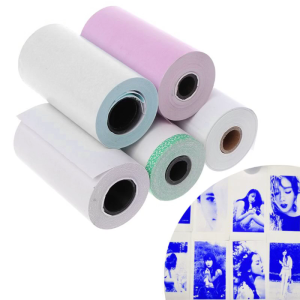
Photo Paper Mini Printable Sticker Roll Thermal Printers Clear Printing Smudge-P
【PH Ready Stock】L&C DTF Hotmelt Powder For DTF Transfer Film Fine Particle High Elasticity Premium Quality
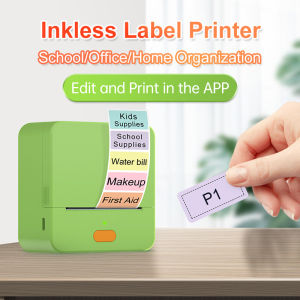
【Super low price】P1 Label Maker Machine 57mm Pocket Thermal Sticker Printer for Organizing Adhesive Tag DIY Date Journal Study Stickers 20-50mm label Width Support Wireless BT Connect Compatible with iOS Android