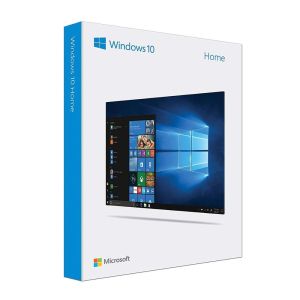
Windows 10 Home 32bit/64bit OEM USB 3.0 FPP: A Comprehensive Guide
Windows 10 Home 32bit/64bit OEM USB 3.0 FPP: A Comprehensive Guide
What is OEM Windows 10 USB?
OEM Windows 10 USB refers to an Original Equipment Manufacturer version of the Windows 10 operating system pre-installed on a USB 3.0 installation media. This version is specifically designed for computer manufacturers to install Windows on their machines before they reach consumers. OEM Windows 10 USB is more affordable than retail versions, making it a popular choice among consumers looking for a cost-effective solution.
Key Features of OEM Windows 10 USB
OEM Windows 10 USB offers several key features, including:
- Affordability: OEM versions are generally cheaper than retail versions, offering consumers a cost-effective solution.
- Customization: OEM versions allow manufacturers to customize the operating system to meet their specific requirements.
- Compatibility: OEM versions are optimized for specific hardware configurations, ensuring a seamless user experience.
How OEM Windows 10 USB Differs from Retail Versions
OEM Windows 10 USB differs from retail versions in several ways, including:
- Price: OEM versions are generally cheaper than retail versions due to their limited functionality and customization options.
- Customization: OEM versions allow manufacturers to customize the operating system to meet their specific requirements, while retail versions offer a standardized experience.
- Activation: OEM versions require activation using a unique license key provided by the manufacturer, while retail versions can be activated using a universal license key.
How to Install Windows 10 Home 64bit OEM Using USB 3.0 Media
Installing Windows 10 Home 64bit OEM using USB 3.0 media is a straightforward process. Follow these steps to get started:
Preparing Your Computer for Installation
Before installing Windows 10 Home 64bit OEM, ensure that your computer meets the minimum system requirements and that you have backed up any important data. Disable any security software that may interfere with the installation process.
Step-by-Step Installation Process
- Insert the USB 3.0 installation media into your computer's USB port.
- Restart your computer and press the appropriate key (usually F2, F12, or Del) to enter the BIOS settings.
- Set the USB drive as the first boot device and save the changes.
- Restart your computer and follow the on-screen instructions to install Windows 10 Home 64bit OEM.
- During the installation process, select the appropriate language, time zone, and keyboard layout.
- Choose the installation type (Custom) and select the drive where you want to install Windows.
- Follow the remaining prompts to complete the installation process.
How to Install Windows 10 Home 32bit OEM Using USB 3.0 Media
Installing Windows 10 Home 32bit OEM using USB 3.0 media is similar to installing the 64bit version. Follow these steps to get started:
Preparing Your Computer for Installation
Before installing Windows 10 Home 32bit OEM, ensure that your computer meets the minimum system requirements and that you have backed up any important data. Disable any security software that may interfere with the installation process.
Step-by-Step Installation Process
- Insert the USB 3.0 installation media into your computer's USB port.
- Restart your computer and press the appropriate key (usually F2, F12, or Del) to enter the BIOS settings.
- Set the USB drive as the first boot device and save the changes.
- Restart your computer and follow the on-screen instructions to install Windows 10 Home 32bit OEM.
- During the installation process, select the appropriate language, time zone, and keyboard layout.
- Choose the installation type (Custom) and select the drive where you want to install Windows.
- Follow the remaining prompts to complete the installation process.
FPP Windows 10: What It Means for Users
FPP stands for Full Packaged Product, which refers to a version of Windows 10 that includes all the necessary components and documentation required for installation. FPP Windows 10 is a popular choice among consumers looking for a complete package that includes everything they need to get started.
Licensing and Activation
FPP Windows 10 requires activation using a unique license key provided by the manufacturer. This license key is usually included with the product and can be entered during the installation process.
Benefits of Choosing FPP Windows 10
Choosing FPP Windows 10 offers several benefits, including:
- Complete Package: FPP Windows 10 includes all the necessary components and documentation required for installation, making it a convenient choice for consumers.
- Affordability: FPP versions are generally cheaper than retail versions, offering consumers a cost-effective solution.
- Compatibility: FPP versions are optimized for specific hardware configurations, ensuring a seamless user experience.
Troubleshooting Common Issues
When installing Windows 10 Home 32bit/64bit OEM using USB 3.0 media, you may encounter some common issues. Here are some solutions to help you troubleshoot these problems:
USB 3.0 Installation Media Not Recognized
If your computer does not recognize the USB 3.0 installation media, try the following solutions:
- Check USB Port: Ensure that the USB port is functioning properly and that the USB drive is inserted correctly.
- Update BIOS: Update your computer's BIOS to the latest version to ensure compatibility with USB 3.0 devices.
- Use Different USB Port: Try using a different USB port to see if the issue persists.
Issues with License Key Activation
If you encounter issues with license key activation, try the following solutions:
- Enter License Key Correctly: Double-check that you have entered the license key correctly and that there are no typos.
- Check Internet Connection: Ensure that your computer is connected to the internet and that you can access Microsoft's activation servers.
- Contact Manufacturer: If you continue to experience issues with license key activation, contact the manufacturer for further assistance.
This comprehensive guide covers everything you need to know about installing Windows 10 Home 32bit/64bit OEM using USB 3.0 media. By following the steps outlined in this guide, you can successfully install Windows 10 on your computer and start enjoying all the benefits of this powerful operating system.

VIP-PRO Dropshipping and Computer Software Trading
Review
You May Also Like
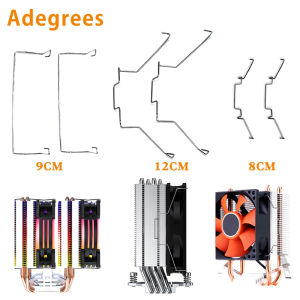
2PCS/Lot 8cm/9cm/12cm Fan Buckle Dissipate Cooling Fan Clip Buckles Elastic Steel CPU Fan Fastener Buckle Bracket
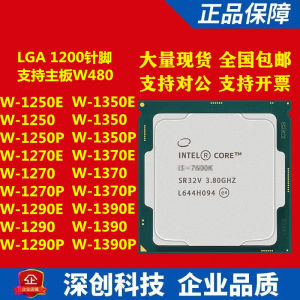
Intel Xeon W-1250E 1270E 1250P 1270P 1270 1290P 1390 1370 1350 CPU Six Core 2.9GHz 14nm Processors for Desktop Computers
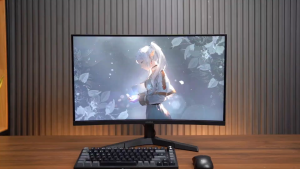
Funhouse | Koorui 27E6CA 27/1500R/FHD/180Hz/99% HDR10 HDMI+HDMI+DP | KOORUI 24E6CA 23.6″ VA Curved Gaming Monitor – R1500 FHD 165Hz
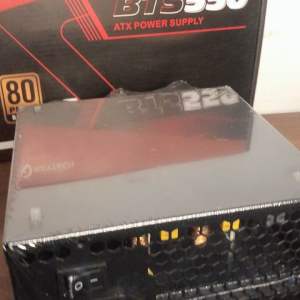
Keytech TrueRated Power Supply 80 Plus Bronze BTS550 550W PSU Power Supply Unit for Desktop PC PSU
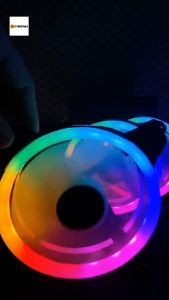
YGT 120mm RGB Case Fan Double Ring LED Rainbow Computer Case Fan Cooling Fan Components
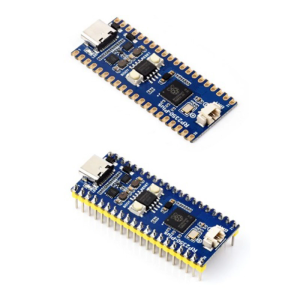
RP2350 Plus Development Board Kit with Onboards Charging and DCDC Converters
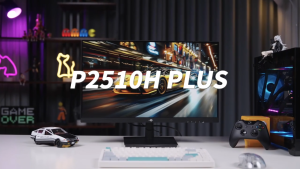
TITAN ARMY P2510H Plus 24.5 Inch FAST IPS 1ms 260Hz FHD 1920X1080 HDR400 Adaptive-Sync Gaming Monitor
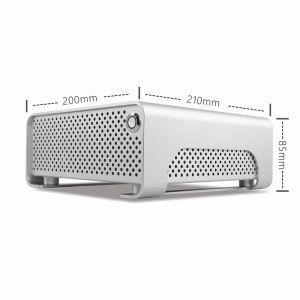
METALFISH MetalGear Plus Aluminum Mini HTPC Case Mini ITX Cases Computer Gaming PC Desktop Case
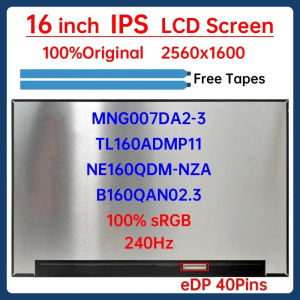
16 Inch 240Hz Laptop LCD Screen MNG007DA2-3 TL160ADMP11 NE160QDM-NZA B160QAN02.3 Display Panel 2560X1600 100% sRGB eDP 40 Pins
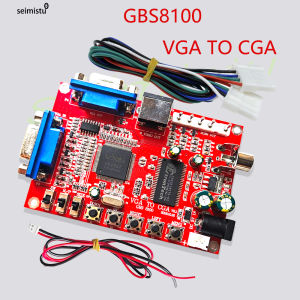
Vga Cga Cvbs S Video Converter High Definition Coin Pusher Neo Geo Arcade Game Board Signal Conversion Crt Machine Gbs8100
Eyoyo 13.3\" IPS Second Screen: A PC & Raspberry Pi Compatible Monitor