



Q Plus 4GB 64GB IPTV Box: A Comprehensive Guide
Q Plus 4GB 64GB IPTV Box: A Comprehensive Guide
Introduction
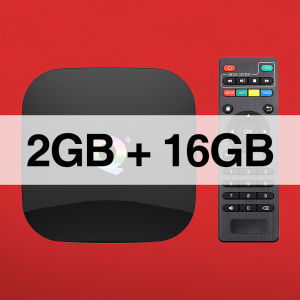
The Q Plus 4GB 64GB IPTV Box is a versatile Android 9 IPTV box that offers a plethora of features and capabilities to enhance your entertainment experience. Packed with 64GB storage, pre-installed channels and movies, and support for 4K HDR content, this media player is perfect for those looking to elevate their home entertainment system. In this comprehensive guide, we will explore the key features, setup, configuration, usage, and troubleshooting tips for the Q Plus TV Box.
Key Features & Specifications
- Android 9 OS: Enjoy a smooth and seamless user experience with the latest Android operating system.
- 64GB Storage: Store thousands of movies, TV shows, and other media files directly on the device.
- Pre-installed Channels/Movies: Comes with over 10,000 pre-installed channels and movies for instant access.
- Support for 4K HDR Content: Experience lifelike visuals with support for 4K resolution and HDR technology.
- 2.4G Wi-Fi: Connect to your network effortlessly with reliable 2.4G Wi-Fi connectivity.
Benefits of the Q Plus TV Box
- High-Quality Entertainment: Enjoy a vast selection of pre-installed channels and movies, along with support for 4K HDR content.
- Ease of Use: Set up and configure the Q Plus TV Box effortlessly, thanks to its intuitive user interface and straightforward setup process.
- Versatility: Connect the Q Plus TV Box to your existing home entertainment system, including TVs, projectors, and sound systems.
- Affordable: Get all these features at a fraction of the cost compared to traditional cable or satellite TV services.
Setup & Configuration
Setting up and configuring the Q Plus TV Box is a breeze. Follow these steps to get started:
Connecting the Q Plus TV Box
- Connect the HDMI cable to the Q Plus TV Box and your TV or projector.
- Plug in the power adapter and connect it to a power outlet.
- Turn on your TV or projector and select the appropriate HDMI input source.
Setting Up the Remote Control
- Insert two AA batteries into the remote control.
- Press and hold the 'Source' button on the remote until the LED light turns on.
- Press the 'Source' button again to select the appropriate input source (HDMI).
Configuring Network Settings
- On the main screen, navigate to 'Settings' > 'Network & Internet'.
- Select 'Wi-Fi' and choose your network from the list.
- Enter your Wi-Fi password and connect to the network.
Usage & Functionality
Now that you've set up and configured the Q Plus TV Box, let's explore its usage and functionality:
Accessing Pre-installed Channels & Movies
To access the pre-installed channels and movies, simply navigate to the 'Home' screen and select the desired category (e.g., 'Movies', 'TV Shows', etc.). Browse through the available titles and select the one you want to watch.
Playing 4K HDR Content
To play 4K HDR content, ensure that your TV or projector supports 4K resolution and HDR technology. Then, navigate to the 'Home' screen and select the desired 4K HDR content.
Customizing the User Interface
The Q Plus TV Box allows you to customize the user interface to suit your preferences. To do this, navigate to 'Settings' > 'Display & Sound'. From here, you can adjust settings such as the display mode, language, and more.
Troubleshooting & Support
If you encounter any issues while using the Q Plus TV Box, refer to the following troubleshooting tips:
Common Issues & Solutions
- No Signal: Ensure that the HDMI cable is securely connected to both the Q Plus TV Box and your TV or projector.
- Wi-Fi Connection Issues: Restart your router and try connecting again. If the issue persists, contact your internet service provider for assistance.
- Sound Issues: Check that the audio settings on the Q Plus TV Box and your TV or sound system are correctly configured.
Contacting Customer Support
If you need further assistance, please contact our customer support team at support@qplusbox.com. Our dedicated support team is available to help you with any issues or concerns you may have.

Pulierde Official Store
Review
You May Also Like
Christmas Snowflake Projector Light Large Decoration Christmas Party Laser Led Stage Light Rotating Xmas Lighting Garden Decor
New Patent【Anti-light】8K HD metal anti-light projector screen pull down roll up white screen for projector screen with no stand wide 100 inch big portable motorized projector screen wall pull up for outdoor
TV Stick 4K HD Android 13.0 Smart TV Stick Boxes 8+128GB Network Media Player Wifi Smart TV Media Mini TV Box
EXPOSE Smart Tv 43 inch Android 12 Bluetooth tv box 32 inch Flat screen Ultra-slim television HDMI Cable Full HD
ZDSSY 650ANSI L018 P350 Projector Native 1080P 4K Full HD Auto Focus & Keystone Correction Android11 Bluetooth BT5.2 WIFI6 360° Portable Office Outdoor Video Home Cinema
HDMI Wireless Display Adapter & WiFi Mobile Screen Mirroring
YG300 Video Projector/Home Theater System With Interface
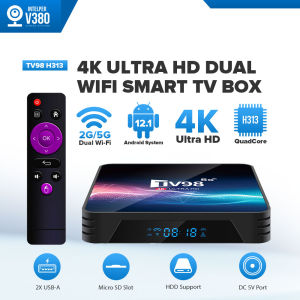
Intelper MXQ Pro TV98 H313 TV Box Support 2.4G / 5G Dual WiFi Android 12.1 Ultra HD 4K Smart TV BOX 8GB / 16GB Quad Core Media Player TV Receivers
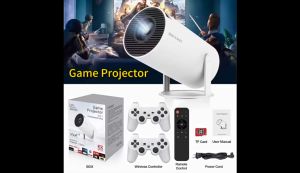
X-DEAL HY300 4K Mini Projector – Game Mode with 2 Gamepads/1080P 4K Full HD/ Built-in Apps for Gaming & MoviesProjector with WiFi and Bluetooth 8000 Lumens Office Home
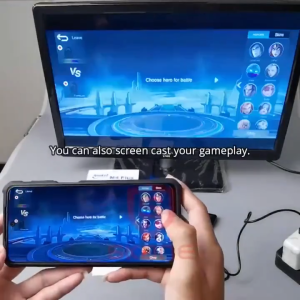
Anycast HDMI Wireless Display Adapter WiFi 1080P Mobile Screen Mirroring Receiver
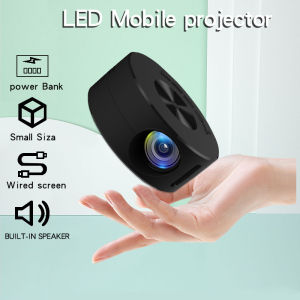
YT200 HD Home Theater LED Lighting Projector Portable Mini Projector Mobile Home Theater
![[Free Gift: 1* HDMI Cable] KONLU Android Projector with WiFi and Bluetooth 2024 Upgrade Outdoor Projector Mini Movie Projector Supports 1080P Synchronize Smartphone Screen by WiFi/HDMI for Home Entertainment](https://img.lazcdn.com/g/p/2b179278afb0ee0441f48be96220a540.jpg_300x300q80.jpg)

















